Posts

List Of Shortcut Commands In Windows 7

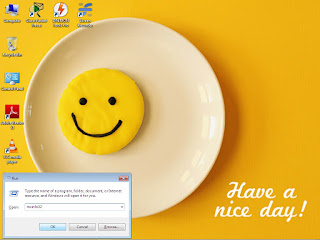
     List Of Shortcut Commands In Windows 7   Step 1               Open Windows Key+R , type Commands.         Functions                                                                  command (Windows+R) Adding a new device                                                  devicepairingwizard Add Hardware wizard                                                hdwwiz Advance user accounts                   ...
Hello Friends "When I have friends like you, every day is a new beginning. Cheers to our friendship! Happy New Year!" "HAPPY NEW YEAR 2018"

Removing the shutdown options from the start menu

Image
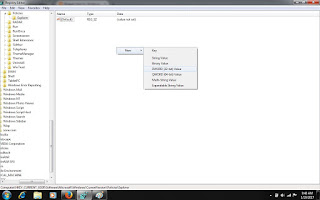
Step 1.   WinKey+R , typing in regedit and click OK. Step 2. Navigate to HKEY_CURRENT_USER\Software\Microsoft\Windows\CurrentVersion\Policies Step 3. Right Click on Policies Click New Click Key (Key Name Explorer ). Step 4. Right Click on Right Panel Click New Click DWORD 32 bit or 64 bit (DWORD Name NoClose). Step 5. Open NoClose Give Value 1. Step 6. Restart Computer.  

Disk Quota Management

Image
This feature use Disk limit for other user. Note :- Only use for Standard User. Step - 1  Open My Computer. Step - 2  Select Volume. Step - 3  Right Click On Volume. Step - 4  Click On Properties. Step - 5  Select Quota. Step - 6  Click Show Quota Settings. Step - 7  Click                Enable quota management.                Deny disk space to users                   exceeding quota limit.                           Step - 8  Click Limit disk space to                 Give value -  20 GB                Step - 9  Click Quota Entries... Step -10  Click Quota Step - 11 Click New Quota Entry... Step - 12  Click Advanced......

Parental Controls

Image
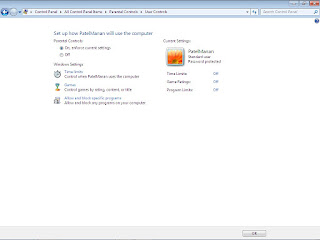
This feature use for block user, game etc. Note : Only use for Standard user.              user must password protected. Step - 1  Go to Control panel. Step - 2  Click on Parental Controls. Step - 3  Click User. Step - 4  Click On.                Show Windows Settings.

Set Password Policy.

Image
Step - 1  Go to Control Panel. Step - 2  Open Administrative tools. Step - 3  Open Local Security Policy. Step - 4  Click Account Policies. Step - 5  Open Password Policy.          (6 Type Of Policy).     1. Enforce password history              This security setting determines the number of unique new passwords that have to be associated with a user account before an old password can be reused. The value must be between 0 and 24 passwords. This policy enables administrators to enhance security by ensuring that old passwords are not reused continually.     2. Maximum password age              This security setting determines the period of time (in days) that a password can be used before the system requires the user to change it. You can set passwords to expire after a number of day...

Show All Information P.C.

Image
Step - 1  Press Window Key + R. Step - 2  Type msinfo32.       Step - 3  Click ok.  Show System Information

Basic commands windows 7

Image
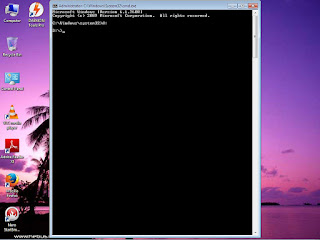
Step 1 Open cmd. C:\Windows\system32> Time  -  show time/change Date   -  shoe date/change Systeminfo - show all p.c. information Dir  -  show all file & folder Md folder name  -  create folder Rd folder name - delete folder Copy con filename.txt  -  create file Type filename.txt  -  show file Call filename.txt  -  open file Del filename.txt  -  delete file Cd foldername  -  change folder Cd ..  -  exit from folder Color L  -  change color Cls  -  clear screen D: -  change Drive E: -  change drive E

Block Web Site In Your Computer.

Image
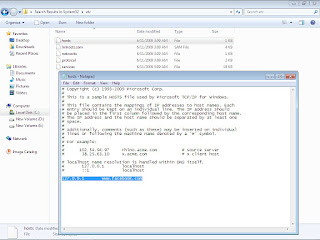
Step-1  Open My Computer. Step-2  Open System Drive (c:). Step-3  Open Windows Folder. Step-4  Open System32 Folder. Step-5  Open Etc Folder. Step-6  Open hosts file in notepad.                             End of the page and type    127.0.0.1     www.facebook.com                              (site name) Step-7  Save File.

Remove all Shortcut Virus.

Image
Step-1  Click Start Button. Step-2  Search Cmd. Step-3  Right Click on Cmd. Step-4  Click on Run as administrator. Step-5  Write d: ( d: Drive letter ). Step-6  Write Del *.ink Step-7  Write attrib  -s -r -h *.* /s /d /l

Create User With command.

Image
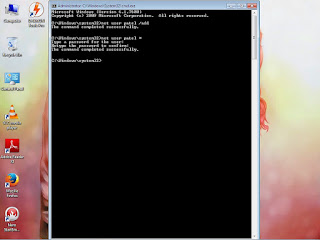
Step-1  Log in Administrator User. Step-2  Click Start Button. Step-3  Search Cmd. Step-4  Right Click on Cmd. Step-5  Click on Run as Administrator. Step-6  Write. C:\Windows\system32>net user username /add (like net user patel /add) C:\Windows\system32>net user username * (allow password). Step-7  Press Window key + L. Step-8  Click Switch User. Step-9  Log in New user.

Creating a New Windows Firewall Rule.

Image
Step-1  Click Start. Step-2  Click Control Panel. Step-3  Search and Open Firewall. Step-4  Click Advances Setting. Step-5  Click on Inbound Rules. Step-6  Click New Rule.. Step-7  Create new rule. Step-8  Click Finish ..

Adding New Programs in Windows Firewall.

Image
Step-1  Go to Control Panel. Step-2  Search And Open Windows               Firewall. Step-3  Click on Allow a programe                or feature through Windows                firewall. Step-4  Click on Allow another                program... Step-5  Browse.. to add a program. Step-6  Click on add. Step-7  Click on ok.

Configuring Window Firewall.

Image
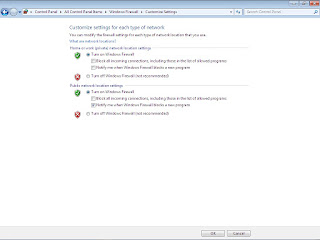
Step-1  Press Window Key + R. Step-2  Write Control Panel. Step-3  Click ok. Step-4  Search Windows Firewall  Step-5  Click on Turn Windows                      Firewall o n or off (Left panel). Step-6  Click on Turn on Windows               Firewall (Home). Step-7  Click on Turn on Windows                Firewall (Public). Step-8  Click on ok. 

Convert Pendrive Without Loss Data.

Image
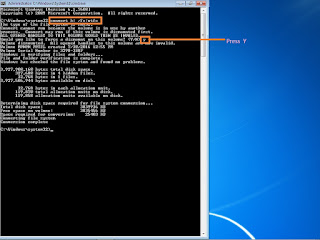
Step-1  Click on Start Button. Step-2  Search Cmd. Step-3  Right Click on Cmd. Step-4  Click on Run as administrator. Step-5  Click Yes. Step-6  Write Convert h: /fs: ntfs                           Note - h: Drive Letter

Disable Start up Menu in Window 7.

Image
  Step-1    Right Click on the Taskbar. Step-2    Click on Properties. Step-3    Click on Start Menu. Step-4    Uncheck                   Store and display recently opened programs in the Start menu.                        Store and display recently opened item in the Start menu and the taskbar. Step-5    Click Apply. Step-6    Click ok.

Delete Partition.

Image
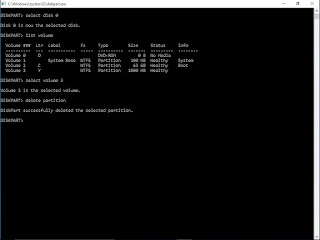
Method - 1 Step-1  Window Key + R (Open Run Box) Step-2  Write diskpart. Step-3  Write Select disk 0 or 1. Step-4  Write list volume. Step-5  Write select volume 3 or 4                               ( Partition number). Step-6  Write delete partition . Method - 2 Step-1  Right click on My Computer. Step-2  Click Manage. Step-3  Click Disk Management. Step-4  Select Partition. Step-5  Right Click on Partition. Step-6  Click Delete Volume....

Create Partition With Command.

Step-1    Window Key + R (Open Run Box). Step-2    Write Diskpart. Step-3    Click on Yes. Step-4    Write  list disk. Step-5    Write  select disk 1. Step-6    Write  create partition primary size=1024 (1024 Size in MB). Step-7    Write  assign letter = g Step-8    Write  format fs=ntfs quick. Step-9    Write  exit. Published  By : MANAN PATEL mananpatel487@gmail.com

Create New Partition in Window 7.

Image
Step-1    Right Click on My Computer. Step-2    Click on Manage. Step-3    Click on Disk Management Step-4    Right Click on Unallocated Space. Step-5    Click New Simple Volume. Step-6    Click on Next. Step-7    Write Volume Size in MB. Step-8    Click on Next. Step-9    Click on Next. Step-10    Click on Next. Step-11    Click on Finish.

Hide Single Drive Partition.

Image
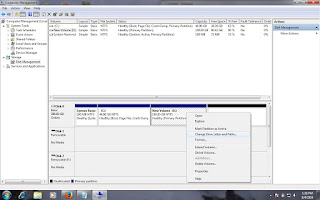
This Step is hide disk partition. Step-1    Right Click on My Computer. Step-2    Click Manage. Step-3    Click on Disk Management. Step-4    Select Disk . Step-5    Right Click on Disk. Step-6    Click Change Drive Letter And Paths.... Step-7    Click on Remove. Step-8    Click Yes.   Hidden partition to return. Step-1    Right Click on My Computer. Step-2    Click Manage. Step-3    Click on Disk Management. Step-4    Select Disk. Step-5    Right Click on Disk. Step-6    Click Change Drive Letter And Paths.... Step-7    Click on Add. Step-8    Click on Ok. ( Show Partition on Your Computer )